Choose Your Printing Method
RapiNova Accounts supports two ways to print receipts and kitchen order slips. You can start with browser printing today and upgrade to the Print Server later.
Browser Printing
Print directly from your browser. No software to download or install. Works on any device with a browser and a printer.
- No install needed
- Works on any device
- Billing + kitchen printing
- Print dialog appears each time
Print Server App
A small free app that runs on your Windows PC. Sends print jobs silently to your thermal printers — no dialog, no clicking.
- Silent — no print dialog
- Faster — prints instantly
- Auto-targets correct printer
- Opens cash drawer automatically
Which Method is Right for You?
| Feature | Browser | Print Server |
|---|---|---|
| Install needed? | No — works instantly | Yes — download one small app |
| Print dialog popup? | Yes — must click Print each time | No — completely silent |
| Speed | 2-5 seconds (dialog + click) | Under 1 second |
| Billing receipts | Yes | Yes |
| Kitchen order slips | Yes (second dialog) | Yes (silent, auto) |
| Cash drawer kick | No | Yes |
| Printer type | Any printer (thermal, inkjet, laser) | Thermal printers (network/USB) |
| Works on | Any device with a browser | Windows PC |
| Best for | Getting started, low volume, tablets | Busy shops, restaurants, speed |
Browser Printing (Zero Install)
Start printing receipts right now — no downloads, no setup. Your browser's built-in print function handles everything.
How to Enable
- 1 Go to Settings → Business Locations
- 2 Click the Settings button (green) for your location
- 3 Set Receipt Printer Type to "Browser Based Printing"
- 4 Set Print Receipt on Invoice to Yes (to auto-print after every sale)
- 5 Click Update
How It Works
- You finalize a sale in the POS screen
- Your browser opens a print dialog with the receipt preview
- Select your printer and click Print
- The receipt prints on your selected printer
Kitchen Printing with Browser Mode
Browser printing also supports kitchen order slips. If Auto Kitchen Print is enabled in your location settings:
- First, the billing receipt print dialog appears — select your counter printer and print
- After 1-2 seconds, a second print dialog appears for the kitchen order slip
- Select your kitchen printer (or the same printer) and click Print
Tip: In Chrome, you can set a default printer so you don't have to choose each time. The dialog still appears, but you just press Enter or click Print.
Note: With browser printing, you'll see a print dialog for each slip (billing + kitchen = 2 dialogs). For busy restaurants processing many orders per minute, consider upgrading to the Print Server for silent, automatic printing.
Print Server App
The Print Server is a small free application that runs on your Windows PC. It connects your cloud POS to your local thermal printers — receipts print silently, instantly, with no dialogs.
Why Upgrade to Print Server?
- Silent printing — no popup dialogs, no clicking "Print"
- Instant — receipt prints in under 1 second
- Auto-routes — billing goes to counter printer, kitchen goes to kitchen printer, automatically
- Cash drawer — opens your cash drawer automatically on each sale
- ESC/POS format — true thermal printer commands for clean, fast output
Step 1: Download & Install
Download Print Server for WindowsNo additional software needed. Single file, zero dependencies. Just download and double-click.
Windows SmartScreen: First run may show "Windows protected your PC." Click "More info" then "Run anyway". This is normal for new applications.
Step 2: Run the Print Server
- 1Double-click
pos-print-server.exeto start - 2A window will open showing "Server started... Listening on port 6441"
- 3Keep this window open while using the POS system
Auto-Start on Windows Boot (Optional)
- 1Press
Win+R, typeshell:startup, press Enter - 2Copy
pos-print-server.exeinto this folder - 3The print server will now start automatically when Windows boots
Add Printers in POS Settings
Print Server only. This step is only needed if you're using the Print Server (Method 2). Browser printing uses your computer's installed printers directly.
- 1Log in to your POS system
- 2Go to Settings → Receipt Printers → Add
- 3Enter your printer details (see table below)
- 4Repeat for kitchen printer if you have one
| Field | Value | Notes |
|---|---|---|
| Name | "Counter Printer" or "Kitchen Printer" | Any name you choose |
| Connection Type | Network | Most thermal printers use network |
| IP Address | e.g., 192.168.1.100 | Your printer's network IP |
| Port | 9100 | Standard for thermal printers |
| Char Per Line | 42 or 32 | 42 for 80mm paper, 32 for 58mm |
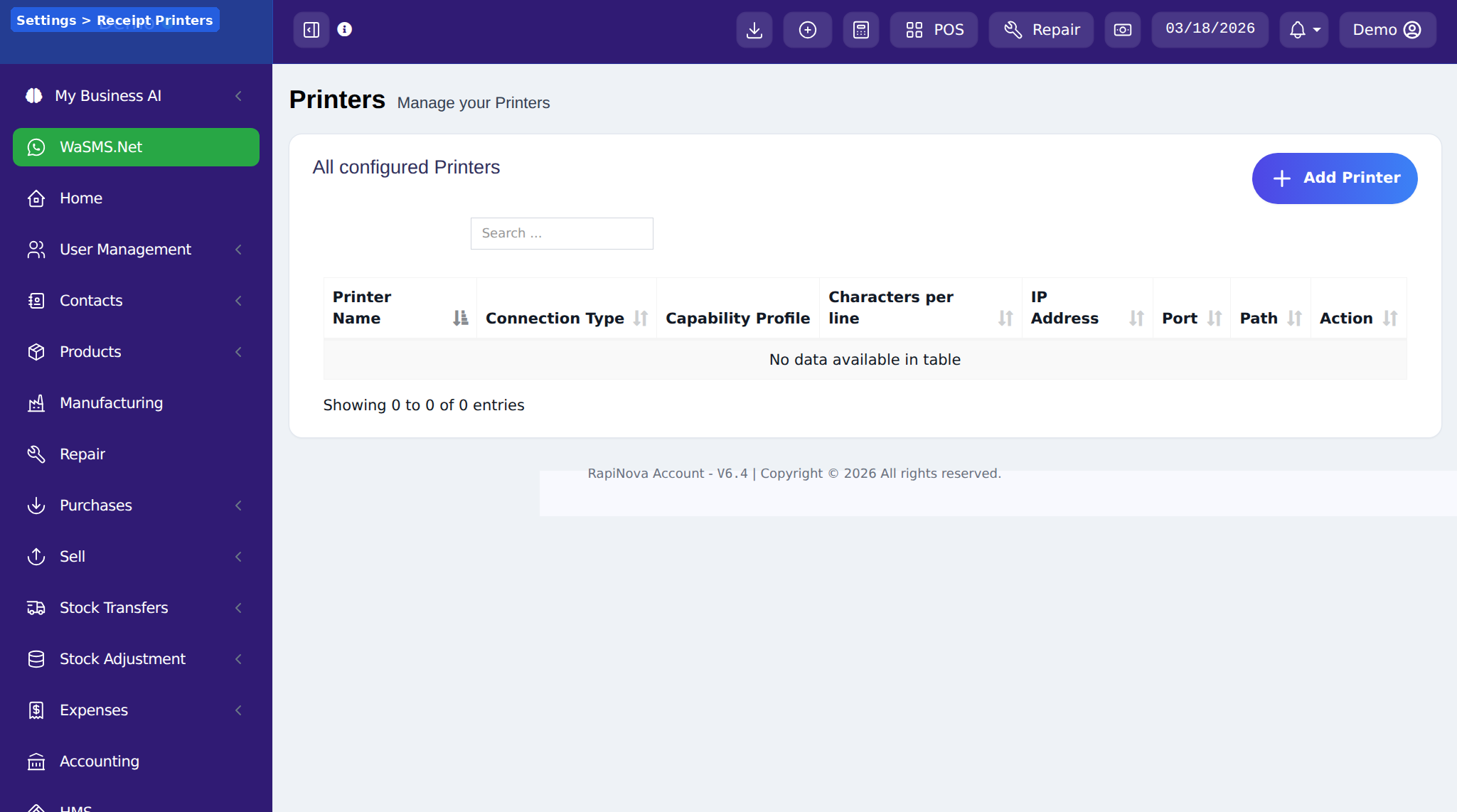
Finding your printer's IP: Check your printer's network settings (usually printed on a self-test page) or check your router's connected devices list.
Configure Your Business Location
This is where you choose which printing method your location uses and assign printers.
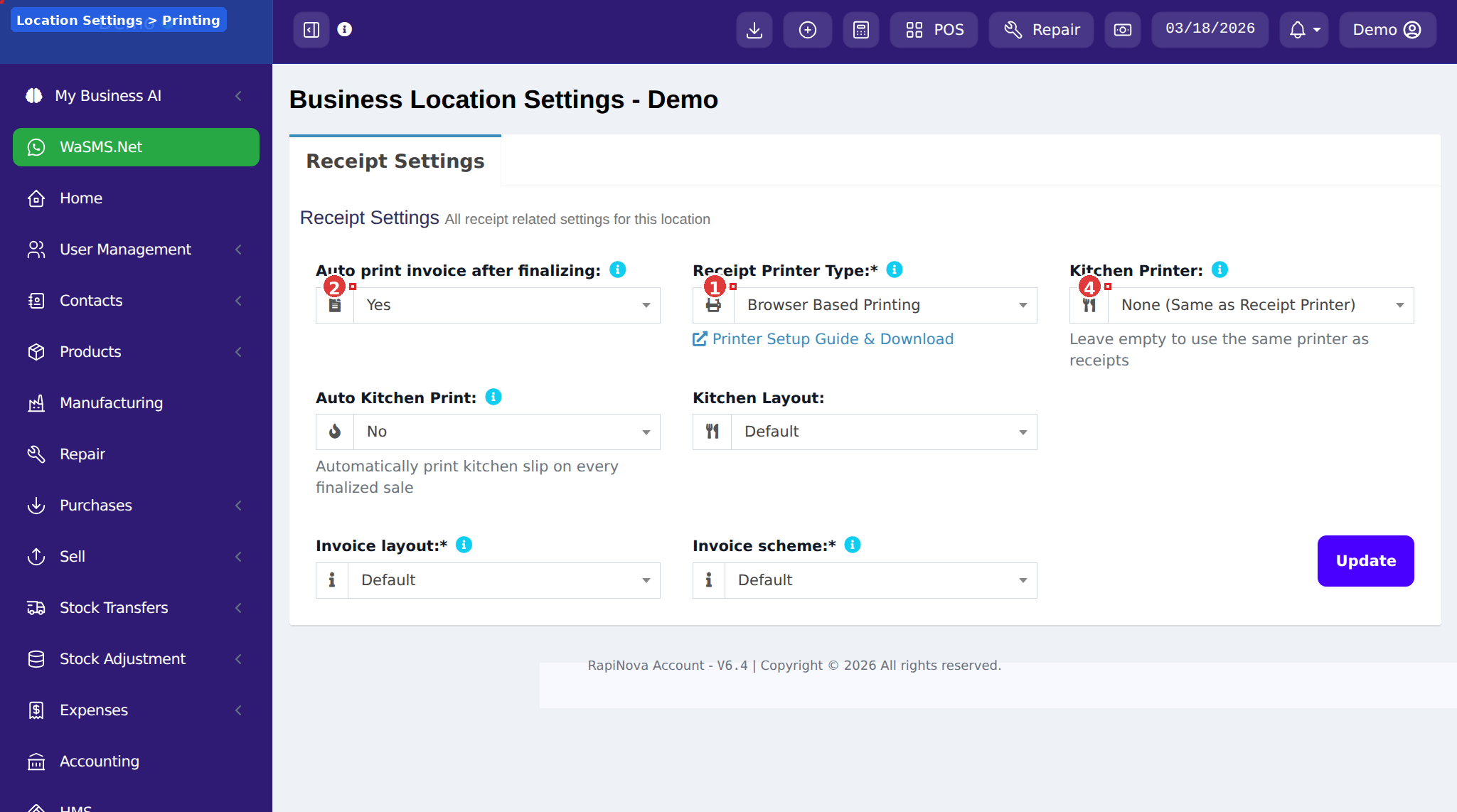
- 1Go to Settings → Business Locations
- 2Click the Settings button (green) for your location
- 3Configure the settings below based on your chosen method
- 4Click Update
| Setting | Browser | Print Server |
|---|---|---|
| Receipt Printer Type | Browser Based Printing | Use Configured Receipt Printer |
| Print Receipt on Invoice | Yes | Yes |
| Receipt Printer | N/A (uses browser) | Select your counter printer |
| Kitchen Printer | N/A (uses browser) | Select your kitchen printer |
| Auto Kitchen Print | Yes (for restaurants) | Yes (for restaurants) |
Troubleshooting
Browser Printing Issues
| Problem | Solution |
|---|---|
| No print dialog appears | Check that Receipt Printer Type is set to "Browser Based Printing" and Print Receipt on Invoice is "Yes" in Location Settings. |
| Receipt too wide or too narrow | In your browser's print dialog, adjust the paper size and margins. For thermal printers, set paper width to 80mm or 58mm with zero margins. |
| Kitchen slip doesn't appear | Make sure Auto Kitchen Print is "Yes" in Location Settings. The kitchen dialog appears 1-2 seconds after the billing receipt dialog. |
Print Server Issues
| Problem | Solution |
|---|---|
| Nothing prints | Check the Print Server window is open and shows "Server started." Refresh the POS page. Ensure Receipt Printer Type is "Use Configured Receipt Printer." |
| Printer not found | Ensure the printer is ON and on the same network. Try ping 192.168.1.100 from Command Prompt to test connectivity. |
| Print Server won't start | Another program may be using port 6441. Close other POS or printing apps and try again. Allow through Windows Firewall if blocked. |
| Garbled or cut-off text | Check "Char Per Line" matches your printer: 42 for 80mm paper, 32 for 58mm paper. |
| Kitchen slip doesn't print | Check Auto Kitchen Print is "Yes" and a Kitchen Printer is selected in Location Settings. See Kitchen Printing Guide. |
Running a Restaurant?
Learn more about kitchen order slip printing, what's on the slip, and advanced options.
Kitchen Printing Guide