What is Kitchen Printing?
Kitchen printing automatically sends a separate order slip to the kitchen every time a sale is finalized. This means:
- Counter gets the billing receipt — with prices, totals, and payment info
- Kitchen gets the order slip — with item names, quantities, order type, and notes (no prices)
Two Ways to Print Kitchen Slips
Kitchen printing works with both printing methods. Choose based on your needs:
Browser Printing
Kitchen slips print through your browser's print dialog. No software needed.
- Works immediately
- Any printer works
- Second dialog after billing receipt
- Must click Print each time
Print Server App
Kitchen slips print silently and automatically to a dedicated kitchen printer. No clicking needed.
- Completely silent
- Auto-routes to kitchen printer
- Under 1 second
- No cashier action needed
Kitchen Printing with Browser
No printer software needed. Enable kitchen printing in 3 steps:
1. Enable Auto Kitchen Print
- 1Go to Settings → Business Locations
- 2Click the Settings button (green) for your location
- 3Set Receipt Printer Type to "Browser Based Printing"
- 4Set Print Receipt on Invoice to Yes
- 5Set Auto Kitchen Print to Yes
- 6Click Update
2. How It Works
When a sale is finalized, two print dialogs appear back-to-back:
- Dialog 1: Billing receipt — select your counter printer, click Print
- Dialog 2: Kitchen order slip — appears 1-2 seconds later. Select your kitchen printer (or same printer), click Print
Tip for speed: If you only have one printer, set it as your browser's default. Then each dialog just needs an Enter key press. For even faster printing with no dialogs at all, upgrade to the Print Server.
Kitchen Printing with Print Server
With the Print Server, kitchen slips print silently to a dedicated kitchen printer — no popups, no clicking, no delay.
First: Complete the Print Server setup if you haven't already. You need the Print Server app running and your printers added in POS settings.
1. Add Kitchen Printer (if using a separate printer)
- 1Go to Settings → Receipt Printers → Add
- 2Name it "Kitchen Printer" and enter its network IP and port (9100)
- 3Save the printer
2. Assign Kitchen Printer to Your Location
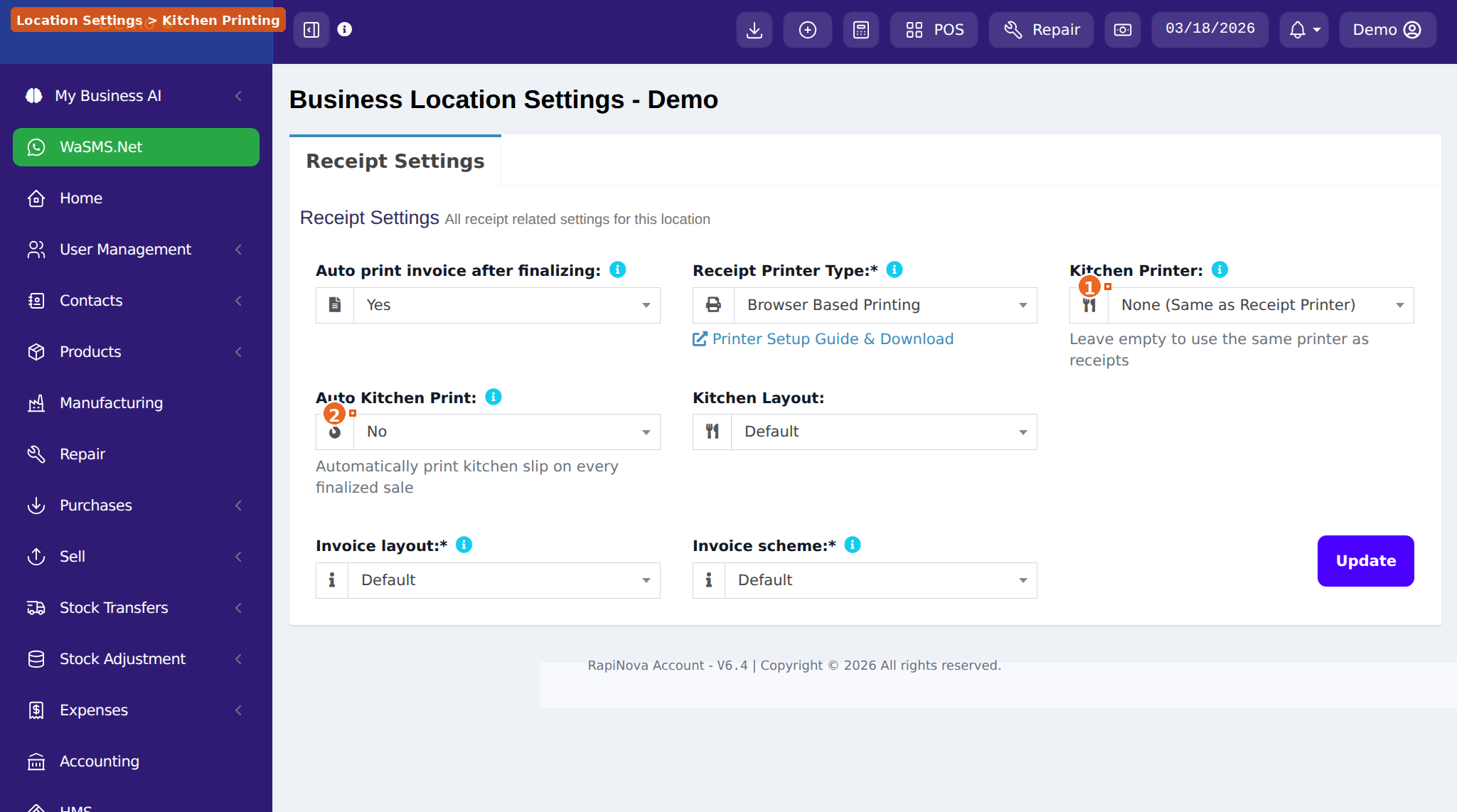
- 1Go to Settings → Business Locations
- 2Click Settings (green button) for your location
- 3Set Receipt Printer Type to "Use Configured Receipt Printer"
- 4In Kitchen Printer dropdown, select your kitchen printer
- 5Set Auto Kitchen Print to Yes
- 6Click Update
3. Test It
- 1Open the POS screen
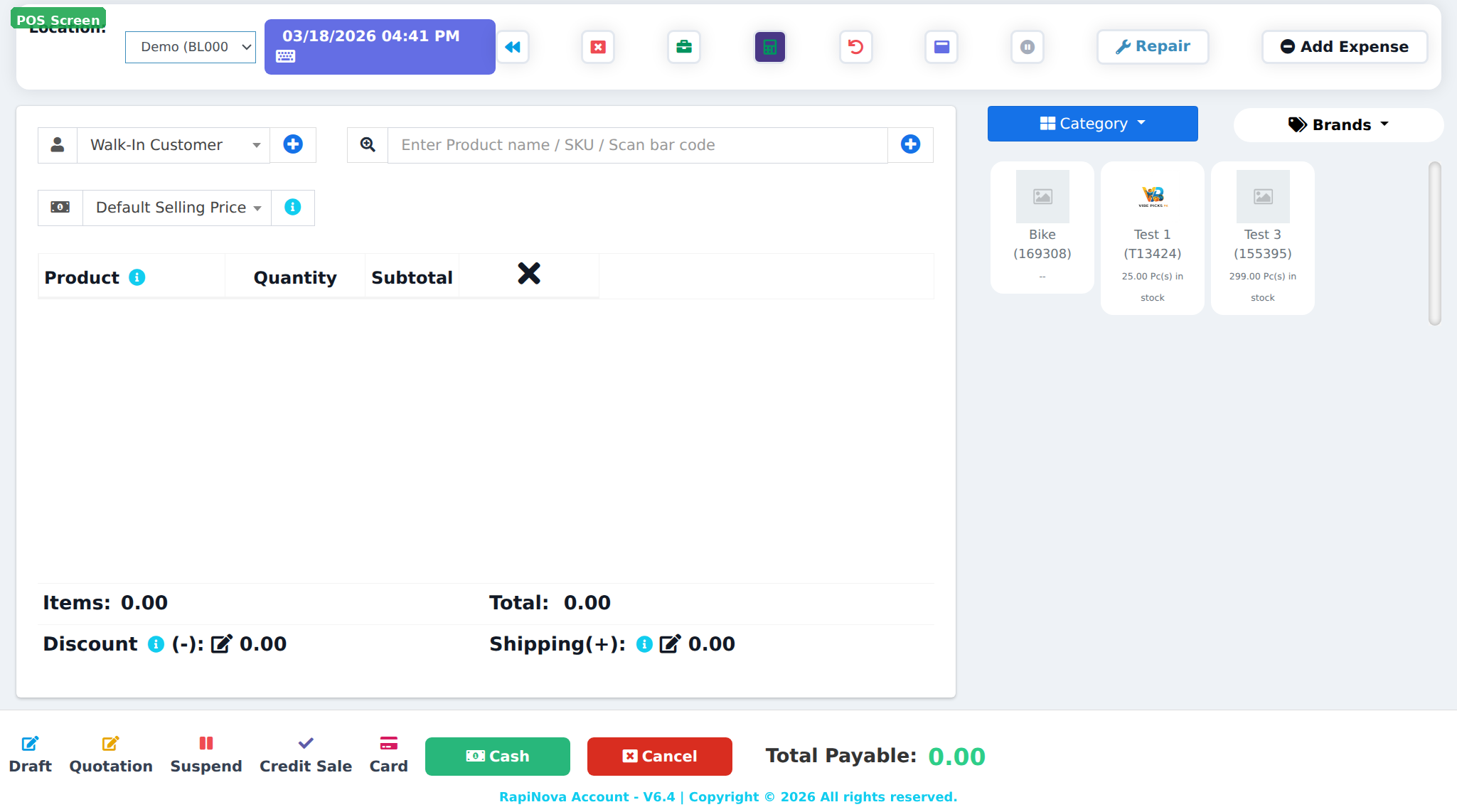
- 2Notice the "Kitchen Order" checkbox is automatically ticked
- 3Add items and finalize the sale
- 4Billing receipt prints silently at counter, kitchen slip prints silently at kitchen — no dialogs!
No separate kitchen printer? No problem. If you don't assign a kitchen printer, both the billing receipt and kitchen slip will print to your counter receipt printer — one after the other.
What's on the Kitchen Order Slip?
The kitchen slip is designed for kitchen staff — clear, simple, no clutter:
| Information | Details |
|---|---|
| Business name | Your business name and location |
| Invoice number | For order tracking |
| Order type | Dine-in, Takeaway, Delivery (shown in large bold text) |
| Table number | If applicable (for dine-in orders) |
| Customer name | For delivery/pickup orders |
| Delivery address | For delivery orders |
| Items ordered | Product name, quantity, and modifiers |
| Date and time | When the order was placed |
No prices on kitchen slips. Kitchen staff only see what to prepare, not how much it costs. This keeps the kitchen focused on the food.
Additional Features
Reprint Kitchen Slip
If a kitchen slip gets lost or you need another copy:
- 1Find the sale in Sell → All Sales
- 2Click the View (eye) button to open sale details
- 3Click the "Reprint Kitchen Slip" button
Manual Control Per Order
Even with Auto Kitchen Print enabled, the cashier can override per order:
- Uncheck the "Kitchen Order" checkbox before finalizing to skip the kitchen slip for that sale
- Useful for non-food items like merchandise, gift cards, or top-ups
Frequently Asked Questions
Do I need the Print Server for kitchen printing?
No. Kitchen printing works with browser printing too — you'll get a second print dialog after the billing receipt. The Print Server just makes it silent and automatic.
Can I use one printer for both receipts and kitchen slips?
Yes. Don't assign a kitchen printer in location settings and both slips will print to your receipt printer, one after the other.
Can different locations have different kitchen printers?
Yes. Each business location can have its own kitchen printer assigned independently.
Does the kitchen slip print for every sale?
Only when Auto Kitchen Print is ON or the cashier manually checks the "Kitchen Order" checkbox. You control it per sale.
What if my kitchen printer goes offline?
The billing receipt still prints normally. The kitchen slip will silently fail without blocking the sale. Check the Print Server window for error messages.
Can I customize what appears on the kitchen slip?
The kitchen slip template is optimized for kitchen use. Contact us on WhatsApp for customization requests.
Need the full printer setup guide?
Compare browser printing vs Print Server and set up your receipt printers.
Printer Setup Guide